Windows clipboard history: how to use it and when to organize your clips
Use Windows + V, understand clipboard history limits and choose when a searchable capture library is a better home for your notes.

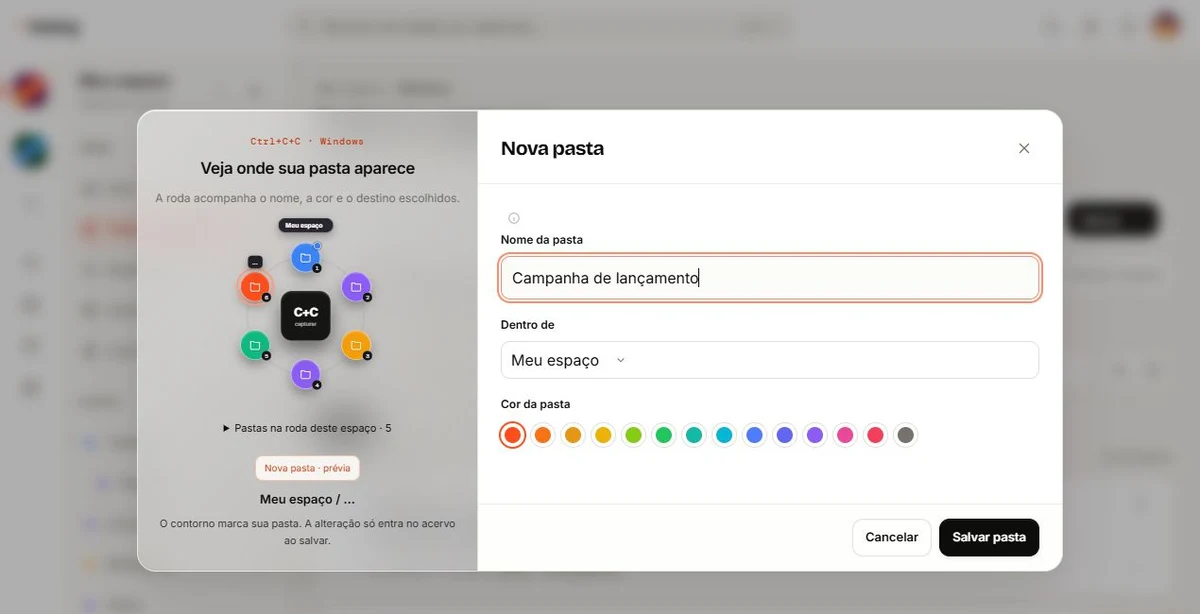
Press Windows + V to open clipboard history. If it is off, enable it in the panel. It helps you reuse recently copied items. For references you want to keep by project, use a library with meaningful titles, folders and context.
Open clipboard history with Windows + V
Clipboard history lets you choose from recent copies instead of relying on the last item you copied. Press Windows + V. If the panel offers to enable history, turn it on to begin keeping supported items.
Select an item from the panel to paste it into the active field. You can pin frequently used items using the history menu. Available controls can vary with your Windows version and device policies.
On a company PC, an administrator may control this feature. If it is unavailable, check which settings are permitted rather than trying to bypass those policies.
Know the limits before relying on it
Microsoft documents a history limit of 25 entries and a maximum of 4 MB per item. Supported formats include text, HTML and bitmap images. Restarting the PC clears history except for pinned entries.
These limits make the feature useful for recent reuse, but a poor substitute for a project archive. Pinning a clip also does not add the context, classification or source you may want in a reference library.
Check the Microsoft clipboard documentation for current details. Windows policies and settings can affect what is available on your computer.
Choose between recent reuse and intentional saving
If you just copied two snippets and need to paste one again, clipboard history may be all you need. If you want to keep a client instruction, organize a reference or find a note next week, save it intentionally in a library.
Twocy's capture workflow is a separate action: with the Windows app installed and signed in, hold Ctrl and press C twice. Choose a folder in the wheel or use its center for the current space's Inbox.
The Windows clipboard history, Twocy's temporary copy history and Twocy's saved library are different features. Items are not all permanent captures just because you copied them. Check the library to confirm that something was saved.
Give important clips a recognizable home
Start with one reference you would otherwise leave in clipboard history. Give it a title that describes the information, choose the project folder and preserve the source where useful.
Do not save passwords, secret keys or personal information merely because it is on your clipboard. Keep only what is needed in an appropriate destination and check access before sharing.
For a fuller routine, see how to organize information on your computer. For browser research, use the link and reference guide.
Frequently asked questions
Does Windows + V organize clips by project?
Clipboard history is designed for recent copies. A project library gives saved material a separate title, destination and context.
Are copied items automatically saved in Twocy?
Copying normally does not mean every item is a permanent capture. Use the capture action and verify the saved item in your library.
Sources
Information checked on October 13, 2026. Features may vary by version and settings.

Try it with something you want to save.
Choose a useful snippet, save it in the right context and find it again in your library.
Download Twocy