How to save useful WhatsApp messages on your PC and find them later
Keep selected WhatsApp Web or Desktop messages by project, with their context and conditions. A snippet workflow, not a chat backup.

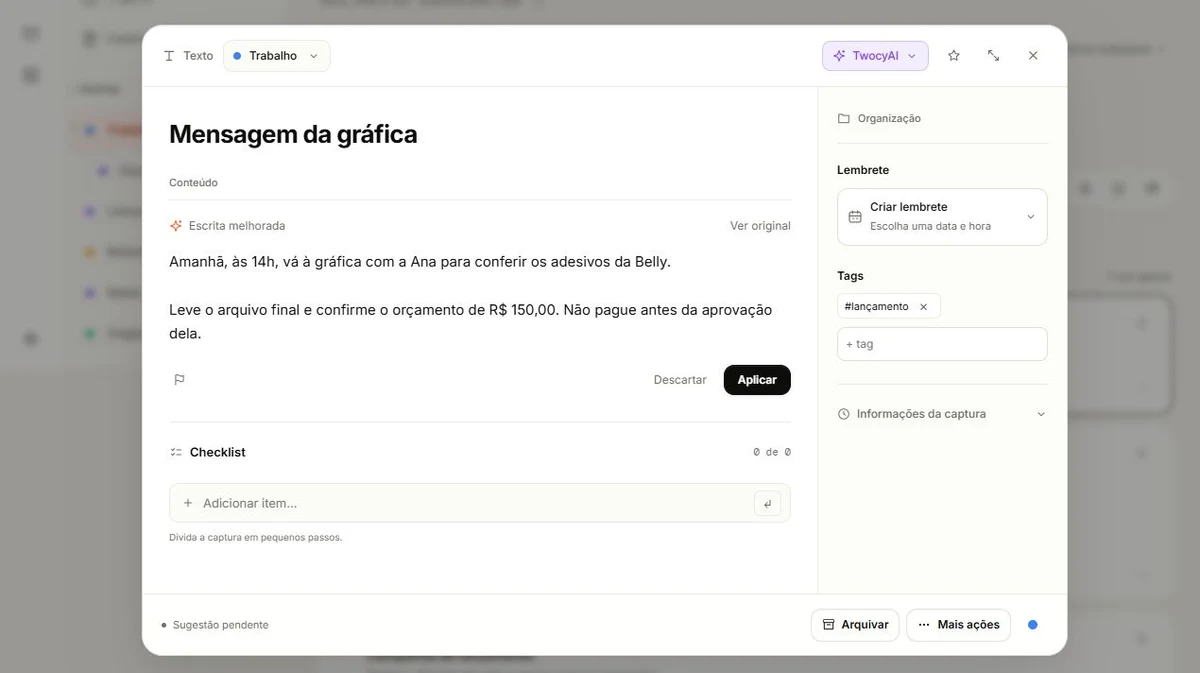
Copy the relevant messages and save them as a note with a recognizable title and the conversation context. With Twocy on Windows, select the text, hold Ctrl and press C twice to choose a folder. This saves selected content; it does not back up or export your WhatsApp chat history.
Select the part that explains the decision
A decision may be spread across several short messages. Copying only the final sentence can remove an important condition. Identify what was requested, who asked, when it is needed and what still requires approval.
For example, “bring the file tomorrow at 2 pm, but don't pay until Alex approves” contains both an action and a restriction. Keep them together. If “tomorrow” depends on the message date, record the original date as context rather than guessing a deadline.
This workflow is for referring back to useful information. For restoring chats, changing phones or retaining a full history, use the appropriate WhatsApp backup or export options. Saving a snippet solves a different problem.
Capture on Windows or paste into the library
- Open the chat in WhatsApp Web or Desktop and select the relevant text.
- With Twocy installed and signed in, hold Ctrl and press C twice.
- Choose a folder in the capture wheel, or the center for the Inbox.
- Open the capture in your library and check that the snippet is complete.
You can also copy normally and paste into the Twocy dashboard's quick capture field. If the source app does not let you select exactly what you need, use this route and verify the result.
Give the capture a title such as “Approval for campaign stickers.” Put the contact and project in the description if useful. You do not need a separate folder for every contact when their messages belong to the same project.
Keep the context the snippet leaves out
“Go ahead with this” only makes sense if you know which version it refers to. Add a verified note such as “Reply to the proposal sent on October 12.” Do not treat a guess about the context as a confirmed fact.
Check linked files separately. Saving text does not guarantee that an image, audio recording or document mentioned in the chat is included. Save needed material through the relevant capture workflow and verify it in the library.
Check who can access the destination space. Private messages should not enter a shared library just because it is convenient. Remove unnecessary personal details before making a snippet available to others.
Improve readability without changing the agreement
In the capture's TwocyAI menu, use Improve writing when available on your plan. The suggested description appears for review, with controls to compare the original, edit, apply or discard it.
Compare names, numbers, times and conditions. “Don't pay before approval” must not turn into “Pay and request approval.” If an instruction is ambiguous, ask the person who wrote it; rewriting cannot establish missing facts.
Writing improvement changes the description, while title generation is a separate action. Read the AI writing review guide for a checklist. Then give the capture a context you will consult, using the computer organization guide if you need a starting point.
Context for a saved message
Subject:
Contact or owner:
Project:
Original message date:
Important snippet:
What was confirmed:
What still needs approval:
Related file or URL:
Frequently asked questions
Does this save the entire chat?
No. It keeps the content you select or paste. It is not a replacement for chat backup or export.
Does improving writing create a reminder?
No. It reviews the description. Use the reminder feature separately when you want to create a scheduled action.

Try it with something you want to save.
Choose a useful snippet, save it in the right context and find it again in your library.
Download Twocy